Lanternote:an AI journal that helps you reflect after you write
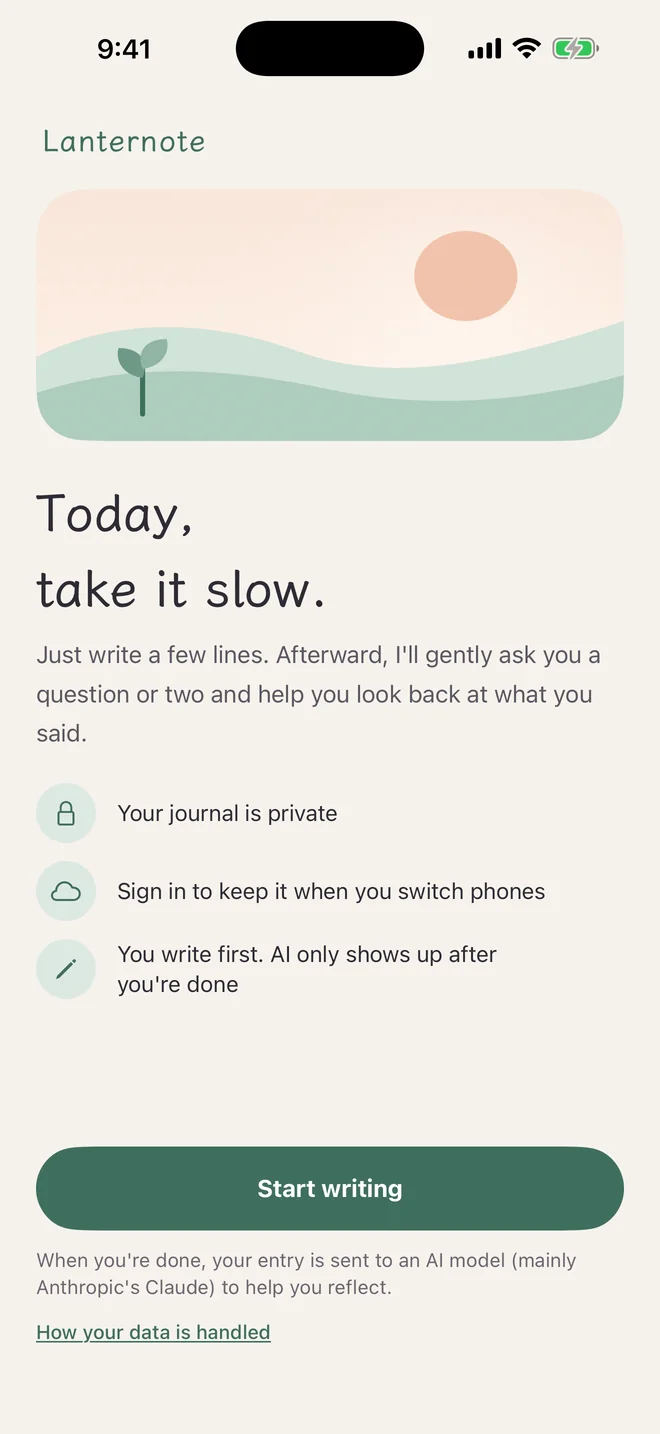
Today, take it slow.
A few lines is enough. When you're done, Lantern gently asks a question or two, helps you look back at what you said, and remembers the people and things you mention.
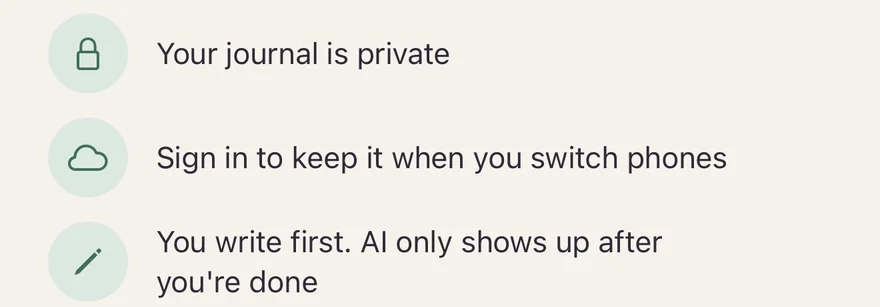
You write first. AI only shows up after you’re done
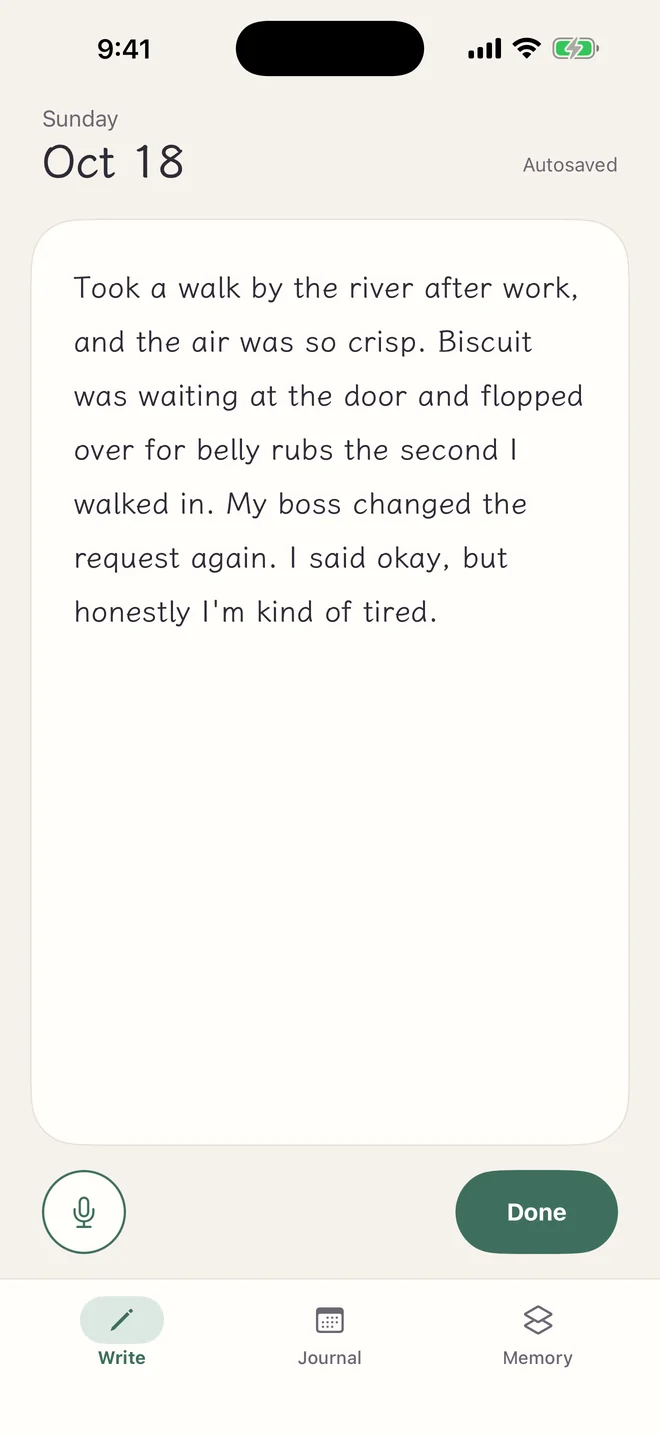
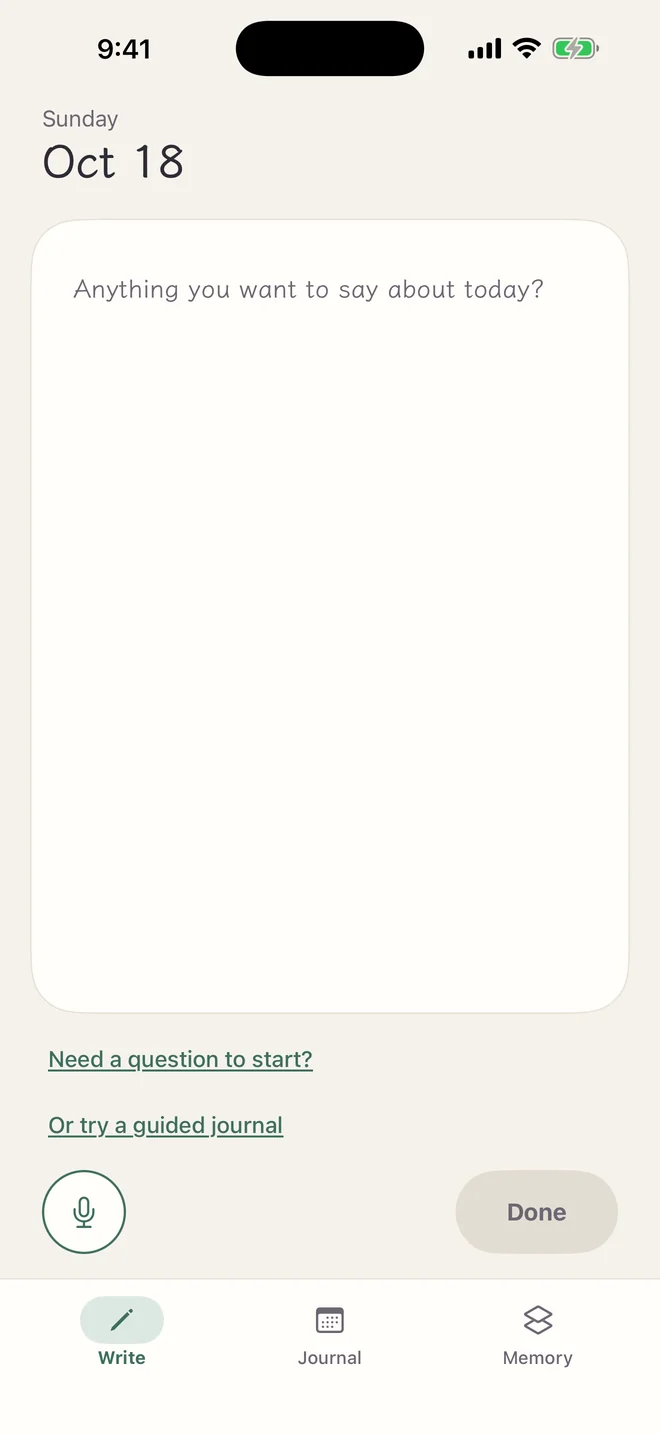
Open Lanternote and there’s a blank page: “How was your day? Write whatever comes to mind.” A few lines is enough, and it’s fine to write a lot or a little. It saves automatically as you go.
Lanternote is an AI journal for iPhone, but you’re always the one writing. While you write, AI stays out of sight and no suggestions pop up. Just writing and saving drafts never sends anything to AI. Once you sign in, drafts are encrypted and synced just like finished entries. When you’re ready, tap Done.
What Lantern does
Gently asks a question or two after you write
Remembers what’s worth remembering, each with your own words
When you ask it something, answers only from what you’ve written
Checks that you’re safe before asking any questions
What Lantern doesn’t do
Interrupt while you’re writing
Rewrite your entries or write them for you
Give advice, diagnose, or judge
Guess your mood: you pick what today felt like, as weather
Keep asking forever: Talk a bit more goes two more rounds at most
Write › After you tap DonePLUS · First week free
After you write, Lantern wants to ask
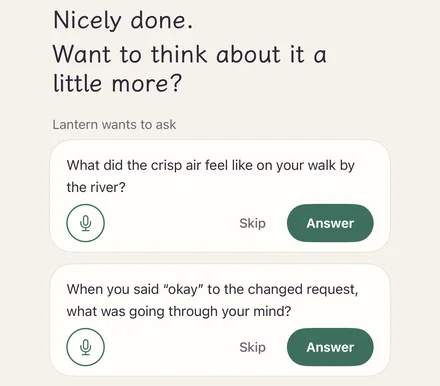
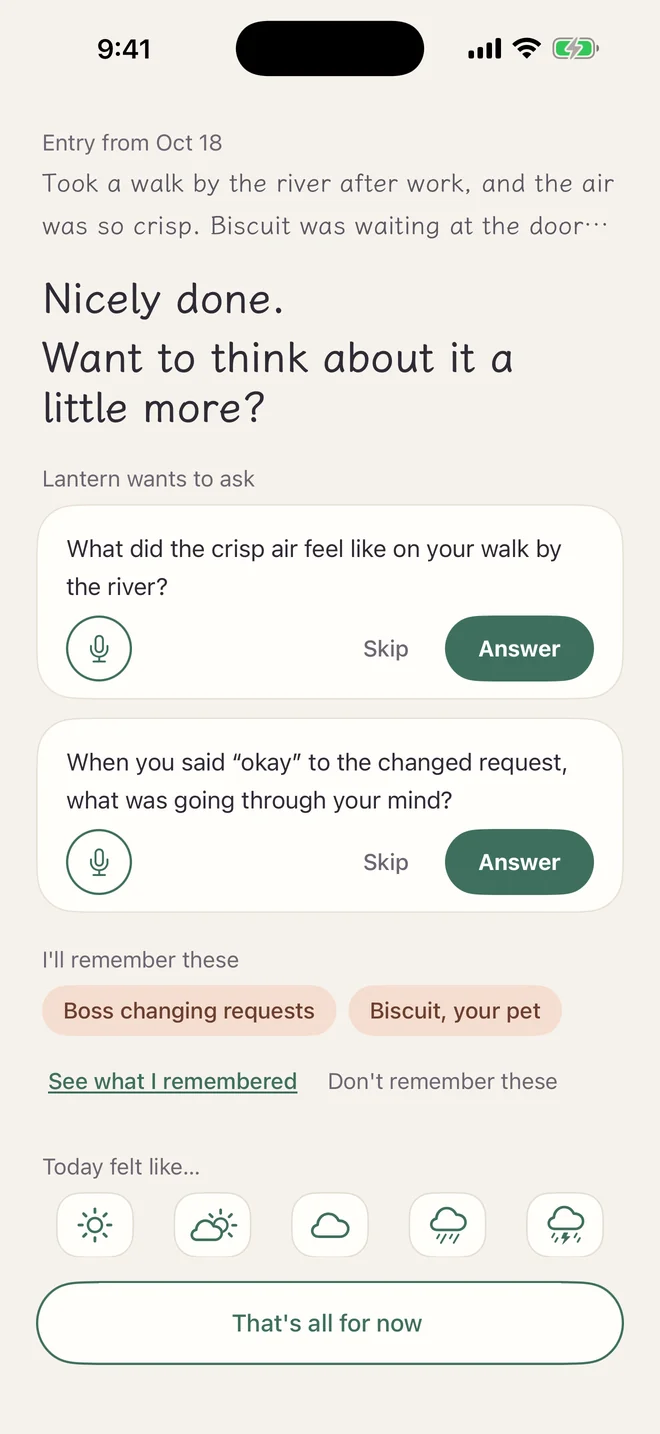
When you tap Done, Lanternote first checks that you’re safe, then reads what you wrote and gently asks a question or two.
“Nicely done. Want to think about it a little more?”
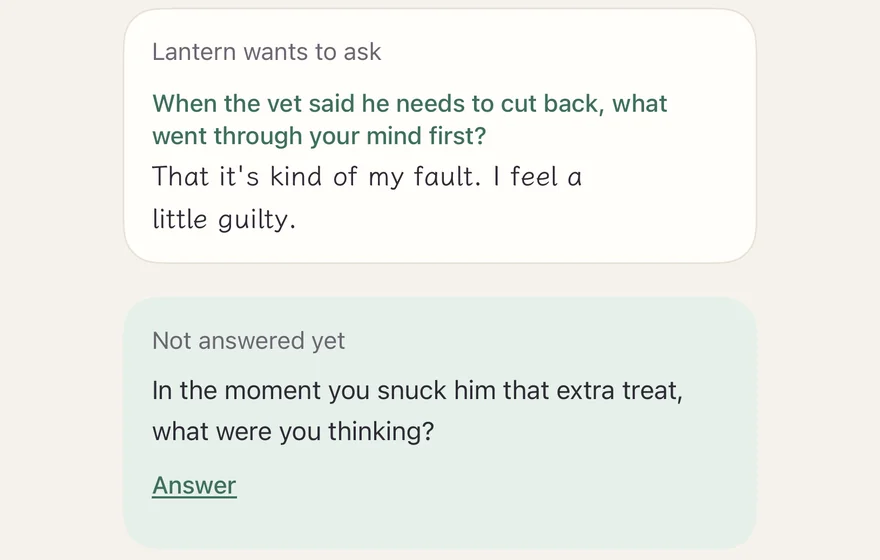
Reflecting after you write can start with just a question or two. The questions grow out of your own words, like: “In that moment, what came to mind first?” To answer, tap Answer and type or dictate, and your answer is saved with the entry. If you’d rather not, tap Skip.
Want to think a little more? Tap Talk a bit more and Lantern asks one more, for up to two more rounds.
Lantern only asks questions. It doesn’t give advice, diagnose, or draw conclusions for you. Questions you didn’t answer stay with that entry, so you can come back to them whenever something comes to mind.
In the Memory tabPLUS · First week free
It remembers what you’ve said, and shows you where
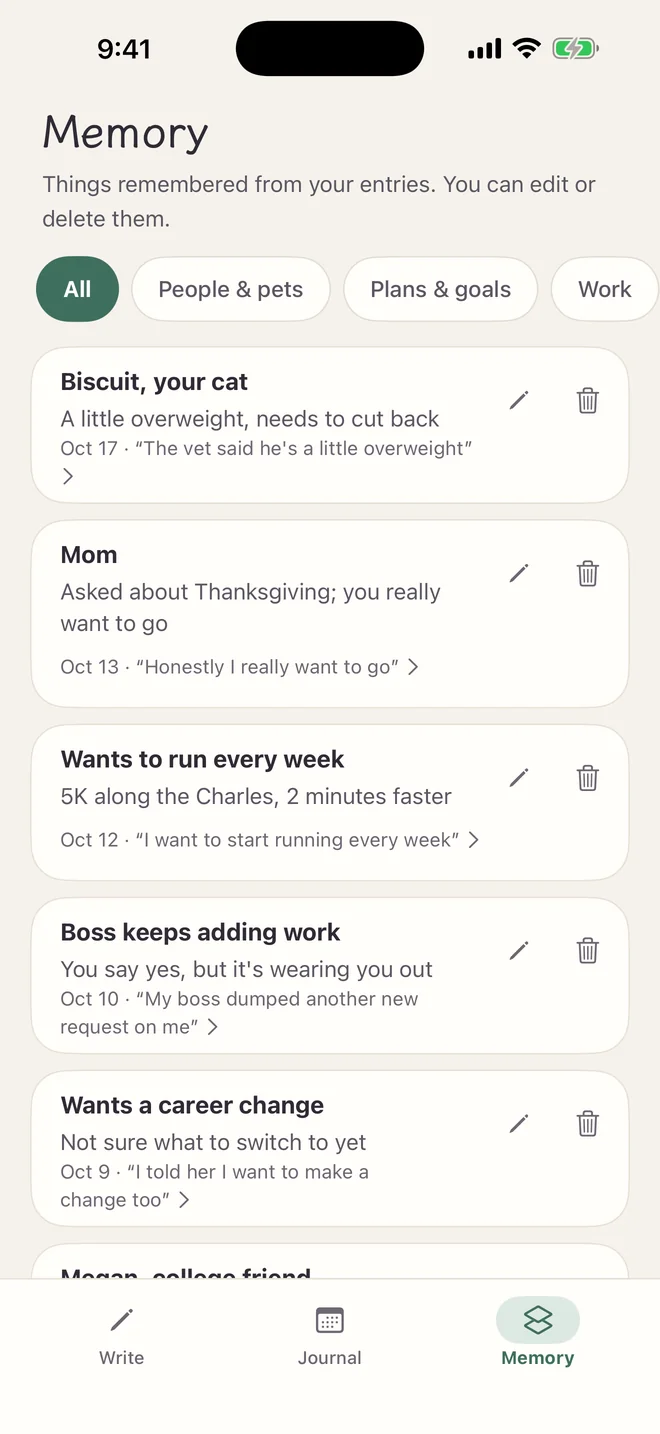
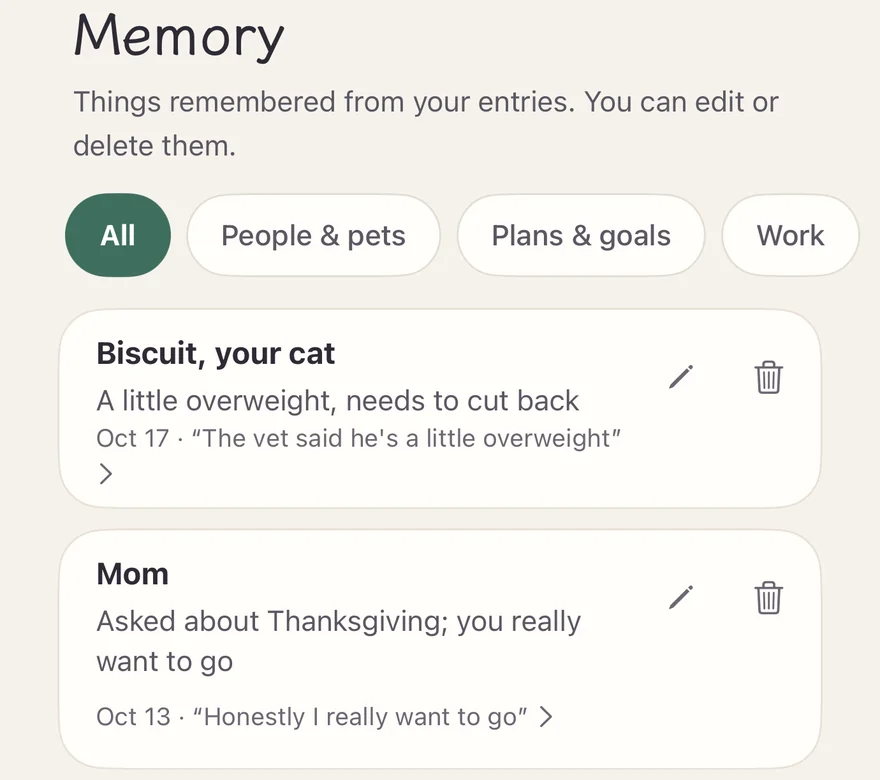
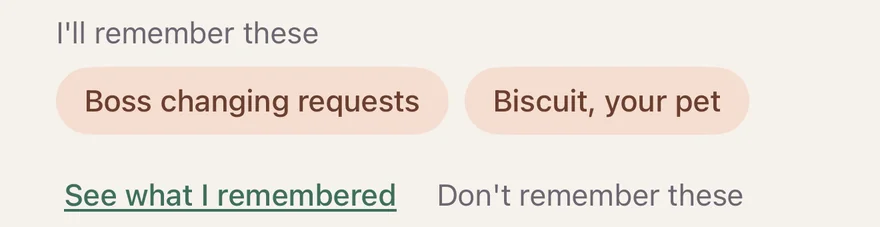
When you finish, you’ll see “I’ll remember these.” Lanternote remembers up to three things worth keeping from each entry, like the people and pets you mention or things you want to do, each with the date and your own words. Tap the source to open that entry with the sentence highlighted. The next time Lantern asks you something, it can pick up on what you’ve said.
“Things remembered from your entries. You can edit or delete them.”
You can edit or delete any of them. Deleted one by mistake? Tap Undo right away. Deleted memories won’t be remembered again. If you don’t want anything remembered from an entry, tap Don’t remember these on the screen after you finish.
In Settings, you can stop remembering a whole category, and Lantern won’t use it when asking you questions:
People & pets
Plans & goals
Work
Health (sensitive)
Money (sensitive)
Daily life
You can also turn Memory off entirely, and either keep what’s already remembered or delete it all. Entries with safety concerns never create memories.
Remembering new things is part of PLUS (free in your first week). Viewing, editing, and deleting what’s already remembered is always available.
In the Write tab › DictateAlways free
Or just say it
When you don’t feel like typing, tap Dictate and talk to your iPhone. Lanternote uses Apple’s speech recognition, built into your iPhone, to turn your voice into text and save it as a draft you can edit. Recordings are never uploaded or saved.
Want to use it as a voice journal? Go ahead: it’s free, with no minute limits. You can also dictate when you answer Lantern’s questions or write a guided journal.
Jot something down without opening the app
The Quick note shortcut on your iPhone adds a line to today’s draft without using AI. You can also say to Siri, “Add a quick note in Lanternote” (what you say to Siri is handled by Apple’s Siri). The Write an entry, Dictate an entry, and Guided journal shortcuts open the app so you can start writing right away. There’s nothing to set up: they show up in the Shortcuts app and in Spotlight, and on an iPhone with an Action button, you can assign one to it.
In the Journal tabAlways free
Look back: calendar, weather, and search
When you finish, you can pick what “Today felt like…”: Sunny, Partly cloudy, Cloudy, Rainy, or Stormy. Or skip it, that’s fine too. You choose the weather yourself; AI won’t guess it for you. If you’d like a simple mood journal, marking today’s weather is all it takes.
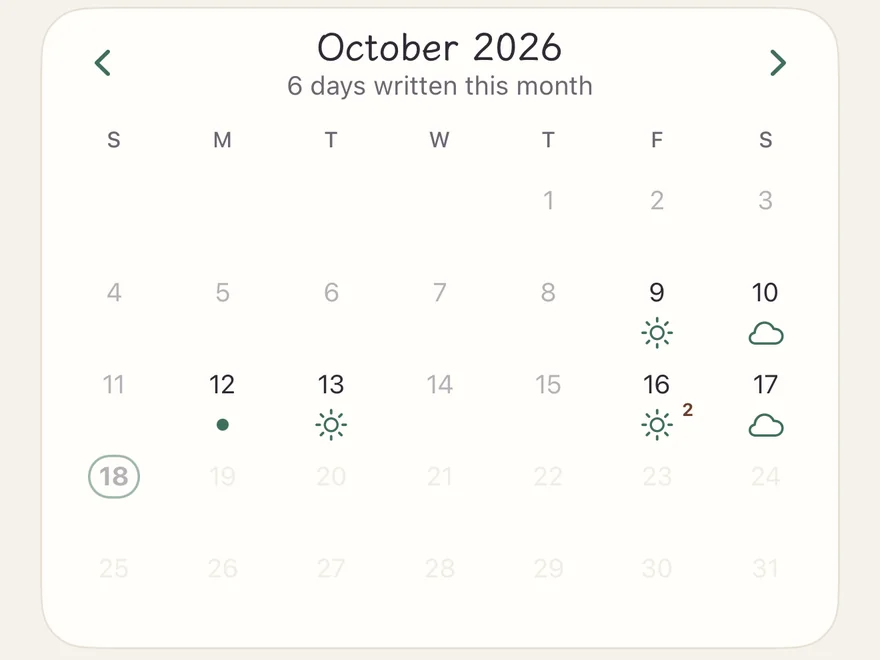
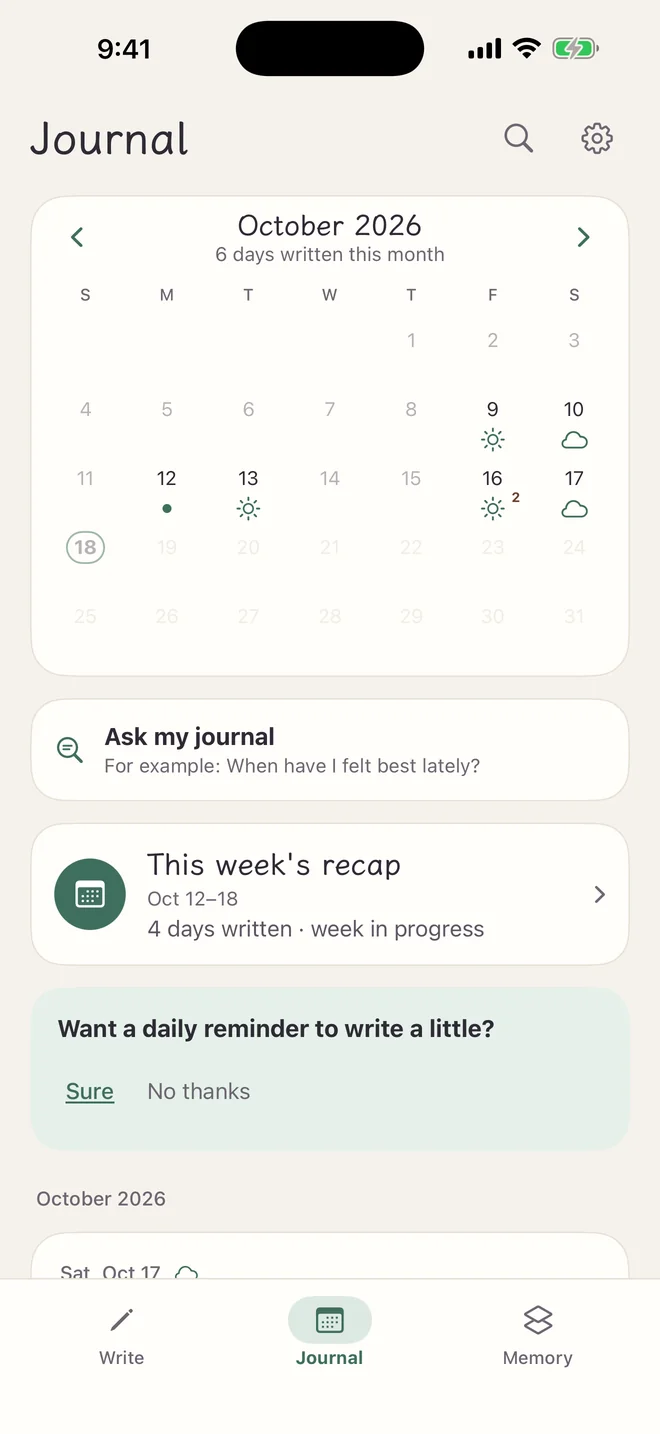
In Lanternote’s Journal tab, the calendar has one square per day, marked with the weather you picked, and shows how many days you’ve written this month. Tap a day to read what you wrote, or go back month by month.
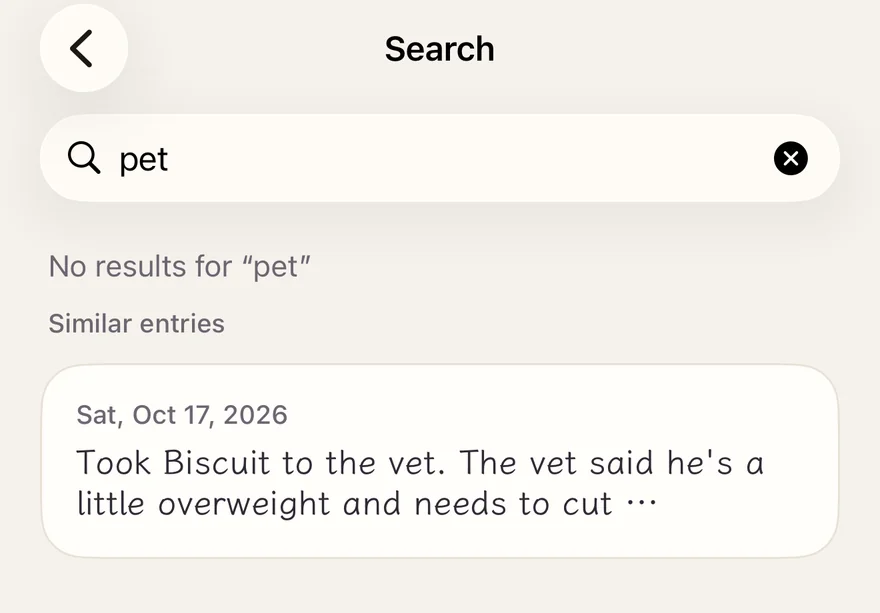
Looking for something? Tap the magnifying glass in the top-right corner of the Journal tab. Exact-word search runs only on your iPhone and covers your entries, prompts, and answers, with matches highlighted. Below that, it lists up to 5 “Similar entries”, so you might find what you’re looking for even if you used different words at the time. For this, only what you type is sent, and matching happens on your iPhone. Without an internet connection, this part isn’t shown.
In the Journal tabPLUS · First week free
Ask my journal, and Weekly recap
Ask my journal
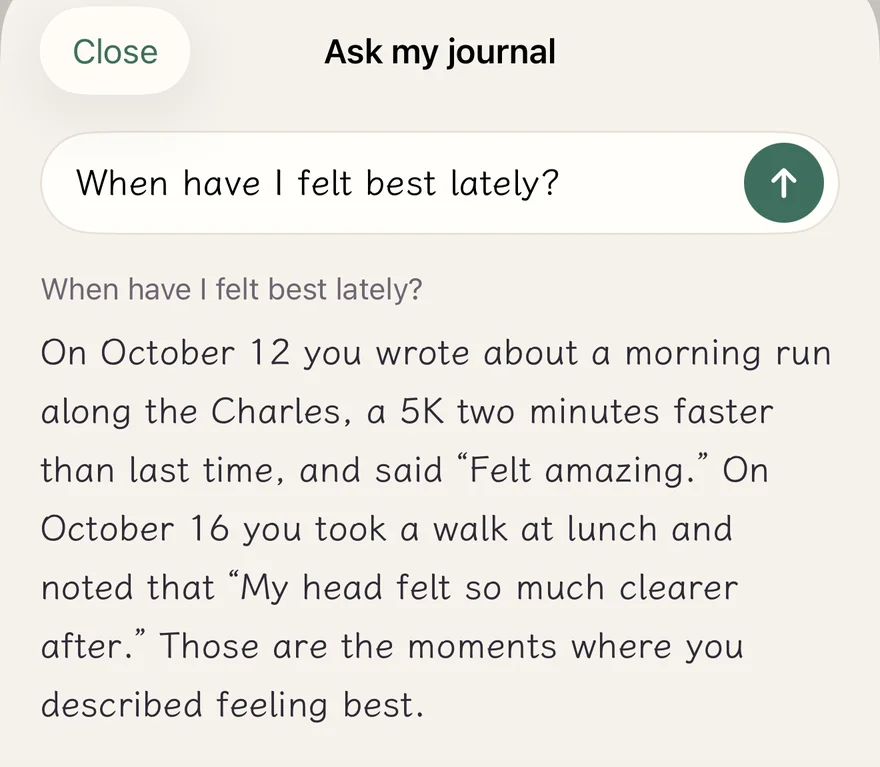
“What do you want to ask your journal?” For example: “When have I felt best lately?” “Who have I been mentioning a lot?” “What have I said I want to do?”
Lanternote answers only from what you’ve written, with quotes marked “From your journal”. Tap one to open that entry. No advice. When you ask, your question and the few most relevant entries are sent to AI. The question itself gets a safety check first, and entries with safety concerns are never used.
Weekly recap
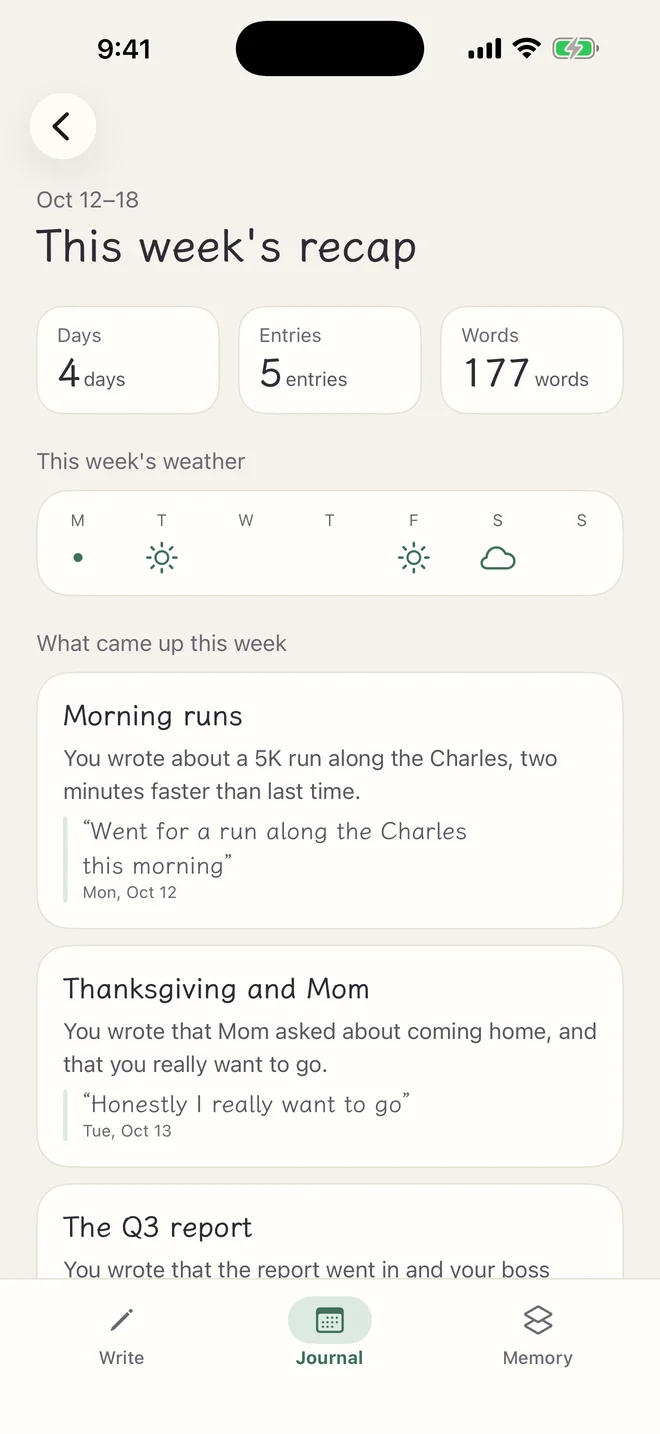
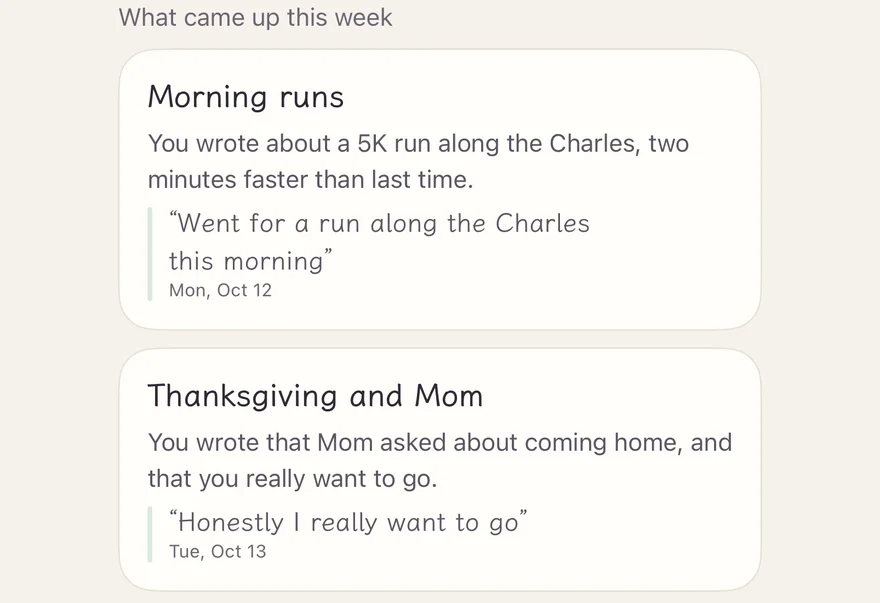
Write on two days in the same week (Monday to Sunday), and you’ll get a recap: how many days, entries, and words you wrote, the week’s weather, what came up this week, how you felt, and the people and pets you mentioned. What came up and how you felt are told in your own words, with quotes. At the end there’s “Something to think about”. If you’d like to write about it, tap Write about this.
If you use Lanternote as a feelings journal, the weekly recap won’t pass judgment. It simply puts what you said this week side by side so you can see it. To put it together, that week’s entries are sent to AI. Entries with safety concerns are left out, and the finished recap is stored only on your iPhone.
In the Write tabAlways free
When you don’t know what to write
Some nights you open it and don’t know where to begin. Tap Need a question to start? and a small prompt appears, like “Did anything someone said stay with you today?” If it doesn’t fit, tap Another question, or close it. Prompts come from a fixed set on your iPhone, not from AI.
Or try one of Lanternote’s guided journals: “One question at a time. Take it slow. When you’re done, it’s saved as an entry.”
Morning check-in
A minute to think about today
If you’d like to journal in the morning, three questions is all it takes. The first:
“What’s the one thing you most want to get done today?”
Evening check-in
Look back on today
The first question picks up on what you wrote that morning:
“This morning you wanted to get ‘…’ done. How did it go?”
Three good things
Hold on to the small good parts of today
Want to keep a gratitude journal? Start with three good things.
“And a second one? Even the tiniest thing counts.”
See it another way
When something feels stuck
Four questions, one at a time. The last one:
“If a good friend went through the same thing, what would you say to them?”
In Journal and SettingsAlways free
Reminders and export
Think about today in the morning, look back at night
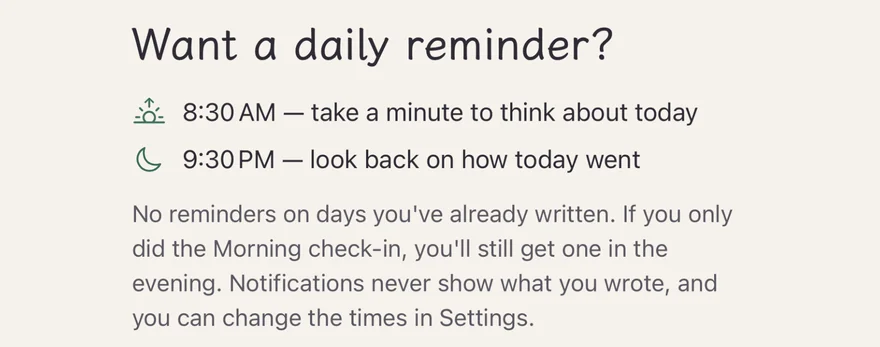
“Want a daily reminder to write a little?” Lanternote can remind you at 8:30 a.m. to take a minute to think about today, and at 9:30 p.m. to look back. You can change both times. On days you’ve already written, it won’t keep reminding you. If you only did the Morning check-in, you’ll still get one reminder in the evening.
Reminders are local notifications on your iPhone. They never show what you wrote, only a few set lines, like “Write a few lines before bed, then let today go.” There are no streaks and nothing to check in to. It’s okay to skip a day.
Your journal is yours to take with you
In Settings, you can export all your entries, in date order, into one file: Markdown (.md) or plain text (.txt). You can choose to include questions from Lantern, your answers, and what was remembered. The file is created on your iPhone and never passes through our servers. Save it to Files, or send it to your computer to keep.
.md.txt
How your data is handled
Your journal’s privacy: where it’s stored and where it goes
A journal is deeply personal. Here’s a plain explanation of where Lanternote keeps it and when it’s sent anywhere. You can also open the “How your data is handled” page from the app’s welcome screen and from Settings.
Where your entry goes after you tap Done
Your iPhone
Writing and saving drafts happen here. Nothing is sent to AI.
Tap Done: this entry and a few related memories
Our servers
Google Cloud, Taiwan region
Content is used only while handling the request. We don’t keep the content of requests or replies.
Mainly Anthropic’s Claude, with Google’s Gemini when needed. May be processed outside Taiwan.
Once you sign in
Your entries (including unfinished drafts) are encrypted and synced from your iPhone to Google Cloud in Taiwan (asia-east1), so they’re still there when you switch phones.
Before anything is sent to AI for the first time, the app asks whether you agree. If you don’t, you can still write as usual, just without AI features. Once you agree, your entry is sent to AI when you tap Done, even if you’re not signed in.
On your iPhone, with encrypted sync once you sign in
Your journal is saved on your iPhone first. You can write without signing in; your entries then stay only on this iPhone, and deleting the app deletes them too. Once you sign in with Apple, they’re encrypted and stored in Google Cloud in Taiwan (asia-east1) for syncing. Sign in with Apple doesn’t ask for your name or email address.
Every account has its own key
Each account has its own encryption key (AES-256-GCM), which is in turn protected by Google Cloud KMS, and connections use HTTPS the whole way. The server software decrypts your content and sends it back to you only when your app syncs; our system logs never record any journal content. Unless required by law, we don’t read your journal for any other purpose. That said, no system can be guaranteed to be 100% secure.
When something is sent to AI
Tapping Done: this entry and a few related memories. AI first checks that you’re safe, then comes up with questions and notes what to remember.
Answering Lantern’s questions, or tapping Talk a bit more: this entry, the questions, and your answers.
Weekly recap: that week’s entries.
Ask my journal: your question and the few most relevant entries.
Gemini is also used for a second safety check, and to turn each entry and memory into vectors so you can find entries with a similar meaning. Vectors are encrypted and synced just like your entries, and deleted along with them. When you search, only what you type is sent.
Not used to train models
Under Anthropic’s Commercial Terms of Service, it doesn’t use this content to train its models; according to Google, it doesn’t either without permission. The providers have their own retention rules, described below under “How long AI providers keep data” and in the privacy policy.
What stays on your iPhone
When you dictate, your voice is turned into text only on your iPhone; recordings are never uploaded or saved. Reminders are local notifications on your iPhone. Once a weekly recap is put together, it’s stored only on your iPhone.
No ads, no tracking
No ads, no analytics or tracking tools, and we don’t sell your data. Payment is handled entirely by Apple, and we can’t see your payment information.
You can always
Write without signing in, so entries stay only on this iPhone
Turn off Memory, or stop remembering a category
Tap “Don’t remember these” on any entry
Edit or delete entries and memories
Export all entries as Markdown or plain text
Delete your account and all data in Settings
Skip voice and just type
How long AI providers keep data
Anthropic deletes inputs and outputs from its back end within 30 days; only if its automated safety systems flag them as potentially violating its usage policy may they be kept for up to 2 years. Google’s caching is turned off; only if Google’s automated safety checks find that a request may involve abuse may Google keep it, for up to 90 days.
After you write, your entry is sent to AI to help (mainly Anthropic’s Claude, with Google’s Gemini when needed). Where it’s stored, where it goes, and how long it’s kept are all covered in the privacy policy.
Before asking any questions, Lanternote first checks each entry to see whether you’re safe. The same goes for every answer and every question you ask in Ask my journal. This is an automated check, not a medical or professional assessment.
If there’s reason to worry, Lantern won’t ask you any more questions. Depending on the result, it shows a gentle response instead, or opens the care screen with helplines right away. Below the gentle response, there’s always a “Want to talk to someone?” link that takes you to the helplines. The words on the care screen are fixed and written by people, not generated by AI on the spot:
“You don’t have to be alone right now. If someone is nearby, you can ask them to stay with you.”
Helplines where you are
The app shows crisis lines for your region where we’ve verified them. Elsewhere, it links to findahelpline.com and reminds you of your local emergency number. If you’re in immediate danger, call your local emergency number.
We won’t notify any person or organization because of it. The safety check and this screen are always free, and they keep working even after you reach the daily AI limit. Entries with safety concerns never create memories and aren’t used in Weekly recap or Ask my journal.
Lanternote is not a medical or mental health counseling service. If you need help, please contact a professional.
Pricing
Writing is always free.
Downloading and writing cost nothing.
First week free
“Everything is unlocked for 7 days from the first time you use an AI feature. You can decide later.”
No subscription needed. The start date is recorded on our server, so reinstalling the app with the same Apple Account doesn’t restart it. If a week begins during those 7 days, that week’s recap is free too.
Lanternote PLUS
“Write a little each day. See yourself more clearly.”
YearlyBest valuebilled once a year
Monthlybilled every month
After every entry, Lantern asks you a question or two, and you can keep talking if you like
Long-term memory: remembers what you’ve shared, and you can view, edit, or delete it anytime
Weekly recap: what came up this week and how you felt
Ask my journal: answers from what you’ve written, with quotes
The App Store shows the price in your local currency. Renews automatically. Cancel anytime in the App Store.
Always free
Writing and autosave
Dictation, with no minute limits
“Need a question to start?” and guided journals
Calendar, past entries, and search (including similar entries)
Viewing, editing, and deleting memories
Reminders
Export to Markdown or plain text
Sign in with Apple and sync
Deleting your account and all data
The safety check and helplines screen (they keep working even after the daily AI limit)
Payment is handled entirely by Apple, and we can’t see your payment information. AI features have a daily fair-use limit. Prices vary by region; the App Store shows them in your local currency. Terms of Use · Privacy Policy
Coming soon to the App Store
Frequently asked questions
Does Lanternote cost anything?
Downloading and writing are free. Your first week is free too: for 7 days from the first time you use an AI feature, every AI feature is available, no subscription needed. After that, to keep getting questions from Lantern, new memories, Weekly recap, and Ask my journal, you can subscribe to Lanternote PLUS, monthly or yearly. The App Store shows the price in your local currency. Subscriptions renew automatically, and you can cancel anytime in the App Store. Writing, dictation, search, export, reminders, and the safety check and helplines screen are always free.
Will AI write my journal for me? How is this different from other journal apps?
No. You write your journal yourself. Lantern never rewrites your words, and no suggestions pop up while you write. Only after you tap “Done” does Lantern gently ask a question or two. If you want to keep going, tap “Talk a bit more”, for up to two more rounds. It also remembers what you’ve said, each memory with a quote from the original entry, so its questions later can pick up where you left off.
Where does my journal go? Is it used to train AI?
Just writing or saving a draft doesn’t send anything to AI. Once you sign in, drafts are encrypted and synced just like finished entries. When you tap “Done”, the entry and a few related memories go through our servers in Google Cloud’s Taiwan region to an AI provider: mainly Anthropic’s Claude, with Google’s Gemini when needed. This happens even if you’re not signed in. The AI first checks that you’re safe, then comes up with questions and notes what to remember. When you answer Lantern’s questions, tap “Talk a bit more”, get a weekly recap, use Ask my journal, or when entries are turned into vectors (to find entries with a similar meaning), the content needed is sent as well. Our servers don’t keep the content of these requests. Under Anthropic’s Commercial Terms of Service, it doesn’t use this content to train its models; according to Google, it doesn’t either without permission. AI processing may happen outside Taiwan, and the providers have their own retention rules. The details are in the privacy policy.
Where is my journal stored? Will I lose it if I switch phones? Can I export it?
Your journal is saved on your iPhone first. You can write without signing in; your entries then stay only on this iPhone, and deleting the app deletes them too. Once you sign in with Apple, they’re encrypted and stored on our servers in Google Cloud’s Taiwan region for syncing, so you can get them back when you switch phones. Each account has its own encryption key (AES-256-GCM), which is in turn protected by Google Cloud KMS. You can also export all your entries in Settings as a Markdown or plain text file. The file is created on your iPhone and never passes through our servers.
Can I dictate my journal? Are voice recordings uploaded?
Yes, for free, with no minute limits. Apple’s speech recognition, built into your iPhone, turns your voice into text. Recordings are never uploaded or saved. You can edit the text first, and from then on it’s just like a typed entry.
What does Memory remember? Can I delete it?
After you write, Lantern remembers things worth keeping, like the people and pets you mention or things you want to do, each with the date and a quote from the original entry. You can view, edit, or delete them anytime, and deleted memories won’t be remembered again. You can turn off categories you don’t want remembered (like Money), or turn off Memory entirely. If you don’t want anything remembered from a particular entry, tap “Don’t remember these”. Entries with safety concerns never create memories.
Can Lanternote help when I’m feeling really low?
Lanternote is not a medical or mental health counseling service and can’t replace professional help. Before asking questions about any entry, it first checks whether you’re safe. If there’s reason to worry, Lantern won’t ask you any more questions and shows a gentle response or helplines instead. You can also tap “Want to talk to someone?” to see helplines. The app shows crisis lines for your region where we’ve verified them; elsewhere, it links to findahelpline.com and reminds you of your local emergency number. This is an automated check, and we won’t notify anyone because of it. The safety check and this screen are always free.
If I delete my account, is all my data deleted?
Once you’re signed in, you can delete your account and all data in the app’s Settings, and you’ll be asked to confirm once more with Apple. Entries, answers, memories, and vectors in the cloud and on this iPhone are all deleted, and the Sign in with Apple authorization is revoked as well. This can’t be undone. Subscriptions must be canceled separately in the App Store. To work out when your free first week started, we keep a hash that can’t be reversed and the time of your first use. It contains no content and isn’t linked to your account, so it isn’t deleted along with your account. If you’d like it deleted, just email us. Content already sent to AI providers is deleted according to the retention rules in the privacy policy.
Which phones does it work on? Is there an Android version?
Lanternote is currently only for iPhone and requires iOS 26 or later. There’s no Android version. It isn’t out yet; it’s planned for the App Store in most regions worldwide (except mainland China).
Today, take it slow.
And tomorrow night, a few more lines, if you like.
Lanternote is made by EdgeLingo, a one-person studio in Taiwan.
Cancel a subscription
You can cancel anytime on your iPhone in Settings > Apple Account > Subscriptions. While you’re subscribed, you can also get there from the app’s Settings › Manage subscription.
Delete your account and all data
Once you’re signed in, you can delete your account and all data in Settings in the app. Settings is in the top-right corner of the Journal tab, and you’ll confirm once more with Apple. Entries, answers, memories, and vectors in the cloud and on this iPhone are all deleted, and the Sign in with Apple authorization is revoked as well. This can’t be undone. Subscriptions must be canceled separately in the App Store.
The free-first-week record isn’t linked to your account, so it isn’t deleted with it. If you’d like it deleted, please email us. If you’re not signed in, your journal is stored only on this iPhone, and deleting the app deletes it too. Content already sent to AI providers is deleted according to the retention rules in the privacy policy.
Privacy
How your journal is stored, where it goes, and how long it’s kept are all in the privacy policy.